When the option to show/unshow the bookmark bar in Chrome is greyed out (on Windows), run REGEDIT, and delete the key ‘ComputerHKEY_LOCAL_MACHINESOFTWAREPoliciesGoogleChromeBookmarkEnabled’. Restart chrome and then you can use the key combo CTRL-SHIFT-B to show or unshow the bookmark bar.
TM1 Server Memory Diagnostic Playbook
TM1 Server Memory Diagnostic Playbook
This playbook discusses select scenarios for TM1 Server memory consumption and growth and will provide guidance on how to diagnose causes of TM1 Server memory growth and an understanding of how TM1 Server has allocated memory. The following provides guidance on capturing logs/data/usage and techniques for identifying causes for TM1 Server memory consumption. This type of investigation is very application and usage specific, so guidance is intentionally broad.
Deleting empty rows – reset the last used cell in Excel
As you may know Excel file stores only the rows and columns up to the last one containing some data or formatting. So if you select the last cell (row = 1,048,576 rows and column 16,384 ) and enter same value and save the file, you might come up with some huge file size.
All TM1 Perspectives developers should know that file size may have a significant impact on TM1Web performance (as the server needs to read all the data, perform calculations and rendering converting it to a web page. Files even over 200-300kb can cause performance issues.
The best practice is to delete all empty rows and the ones created under the cell with TM1RPTROW function (active form rows).
Recently I faced a situation when I was not able to delete Excel rows in a static TM1 Perspectives report. I tried everything: clearing all, deleting rows, deleting cells, using VBA activesheet.usedrange command. Nothing helped.
Finally I found a solution on the internet which worked. You need:
- Select the first empty row (after your data range)
- Scroll down to the end and holding SHIFT click the last row
- Change the height of any selected row (it will apply this height for each selected row)
- No delete the rows and save the file.
- Your issue should be fixed now
Hints: you can see the last used cell by executing VBA command: ?activesheet.usedrange.address
IBM Cognos Analtyics caching data issues when reporting on PA (TM1) cubes
Using CA 11.0.10 and PA 2.0.3 I was building a CA report fetching some numeric and text data from TM1 cube,
I encountered an issue with comments (text values), when I change some comment in TM1, the CA report either still shows the old value or the comment completely disappears.
I tried to clear the query cache in Cognos Analytics (https://www.ibm.com/support/knowledgecenter/en/SSEP7J_11.0.0/com.ibm.swg.ba.cognos.ug_cra.doc/t_asg_clear_qs_cache.html) but it didn’t help.
Then I tried to use TM1 MDX engine for Cognos queries instead if CA LOLAP (Local OLAP engine).
Cognos Analytics, when using Dynamic Query Mode to connect TM1 or PA datasources, will employ DQM’s Java MDX engine which is also known as LOLAP
LOLAP is generally faster than the MDX engine in TM1 and can perform certain calculations that the TM1 MDX engine cannot.
LOLAP allows for considerably more BI side caching. Avoiding round trips to the TM1 server allows for major reductions in user wait times during interactive analysis.
You can do it on a per cube basis:
- Create a string cube attribute named “IsUnderFed” using TM1 Architect
- Log in to Architect > select a model
Under the model > Cubes> select a cube by double clicking - Select Edit from the Menu
- Select Edit cube Attributes
- Select Edit > Add new attribute
- Enter name > IsUnderFed (case sensitive!)
- Select Text radio button and click ok
- Log in to Architect > select a model
- Set the value of the attribute to ‘T’ for any cubes that require the workaround
- In the cell (row:relevant cube, column:Isunderfed(text)), enter value T
- Click Ok.
- Restart the Cognos Analytics query service
See this IBM technote for more details: https://www-01.ibm.com/support/docview.wss?uid=ibm10738115
This solved my issue. But keep in mind that may cause performance issues on TM1 side
IBM Planning Analytics / TM1 DebugUtility
There is undocumented function DebugUtility which is usually used by IBM support to perform different actions.
Here are some examples what you can do:
## Wipe TM1 cache for all cubes
DebugUtility( 125, 0, 0, ”, ”, ” );
## Wipe TM1 cache for the specified cube
DebugUtility( 125, 0, 0, ‘CubeName’, ”, ” );
## Obfuscate cube data (so you can send the model with a fake data to IBM support or somebody else)
DebugUtility( 114, 0, 0, ‘CubeName’, ‘C:folder_to_save_the_obfuscated_cube’ , ” );
Configuring MTQ (Multi-Threaded Query) with IBM Cognos TM1
As of TM1 version 10.2, a new feature known as “multi-threaded queries”, or MTQ, is available. MTQ allows TM1 to take advantage of multiple processor cores to significantly increase the speed at which TM1 can perform calculations and queries by allowing queries to split into multiple processing threads, effectively using a parallel processing regime to resolve queries significantly faster.
The performance improvement of Multi-Threaded-Queries is in an approximately linear relationship to the # of CPU cores that the TM1 query engine is allowed to utilize: Approximate TM1 10.2 Query Time = TM1 <10.2 Query Time / # of CPU Cores utilized for Multi-Threaded Queries.
Here is an IBM note on configuring MTQ:
https://www-01.ibm.com/support/docview.wss?uid=swg21960495&myns=swgimgmt&mynp=OCSS9RXT&mync=E&cm_sp=swgimgmt-_-OCSS9RXT-_-E
MTQ Configuration
MTQ Behaviour & Configuration Options
MTQ is configured and enabled via corresponding entries in the tm1s.cfg file (MTQ=N, with N=#of CPU Cores)
The MTQ parameters in the tm1s.cfg are dynamic, i.e. the TM1 Server process does not have to be restarted after a change in the MTQ settings.
The MTQ value does not specify the total # of CPUs that TM1 can leverage for multiple queries. MTQ defines the # of CPU cores that TM1 may leverage for individual queries (i.e. end users). It follows that if MTQ is for example set to 4 on a system with 8 CPUs, two users could run a Multi-Threaded-Query simultaneously and with each leveraging 4 CPU cores).
If there is no MTQ entry in the tm1s.cfg file or if MTQ=1 or MTQ=0, MTQ is disabled.
To set the value to the maximum number of cores available on a server, the setting MTQ=All (case insensitive) can be used.
Setting MTQ to a negative number will (MTQ=-N) will result in the # of MTQ CPU Cores being determined as follows: T=M-N+1 (where T= # CPU Cores to be used by MTQ, M= # of CPU cores available to TM1). For example, if your computer has 64 cores and you set MTQ=-10, the # of MTQ Cores will be T = 64-10+1 = 55
MTQ does not effectively leverage Hyper-Threaded Cores. If the CPU and OS supports Hyper-Threading, we strongly recommend to disable Hyper-Threading.
MTQ Configuration Scenarios, Consideration & Practices
Generally, the best practice is to set the MTQ value such that the maximum available processor cores are used, i.e. MTQ=All or MTQ=-1 or MTQ=M (with M= # CPU cores incl. hyper-threading cores).
In a scenario where some end user queries consume many CPUs yet still take considerable time and if concurrency is sufficiently high (very high), configure MTQ to use a # of processor cores that will leave CPU capacity available to allow multiple users to leverage MTQ concurrently.
In a scenario where ViewConstruct is being used heavily to leverage MTQ in the context of TI processing (where views can get very large and could potentially take a longer to be constructed time than just a few seconds, instead possibly taking many minutes), it is recommended to set MTQ to a value 100MB. The default value of this parameter in TM1 10.2.2 is FALSE.
The dynamic TM1s.cfg parameter MTQ.CTreeWorkUnitMerge=TRUE speeds up concurrent population of calculation cache kept in the CTree, thereby improving performance of queries that cause a very large cache (re-)population. The default value of this parameter in TM1 10.2.2 is FALSE. Note that MTQ.CTreeWorkUnitMerge=TRUE could lead to redundant work in MTQ threads when the same calculation for exactly the same cell is re-computed per MTQ thread that needs it, whereas with MTQ.CTreeWorkUnitMerge=FALSE a computed cell would be published faster into a global CTree cache and then re-used by all MTQ threads. In cases where MTQ.CTreeWorkUnitMerge is enabled (= set to TRUE), the additional parameter MTQ.CTreeRedundancyReducer=TRUE (also a dynamic parameter) may be used to reduce query redundancies if applicable.
IN TM1 10.2 Version prior to TM1 10.2.2. FP2 HF9, the (default) MTQ.CTreeWorkUnitMerge=FALSE setting could lead to rules not being calculated in certain scenarios where TI-processes were used to (re-)populate/refresh data. We therefore recommend to upgrade to TM1 10.2.2 FP2 HF9 or higher (10.2.2 FP3 and 10.3) when using MTQ. If an upgrade is not feasible at the given time and issues with rule calculations are encountered after TI-processing, enabling MTQ.CTreeWorkUnitMerge (MTQ.CTreeWorkUnitMerge=TRUE) will also solve the issue
For additional documentation the refer to this link – http://www-01.ibm.com/support/knowledgecenter/SSMR4U_10.2.1/com.ibm.swg.ba.cognos.tm1_op.10.2.0.doc/c_tm1_op_multithreadedqueries_description.html
Hint:
MTQ will be leveraged in TI if a sub-process is called in the Prolog of the TI process which then runs the ViewConstruct command against the source cube and view. Using MTQ for faster generation of Views via use of ViewConstruct() may require a significant increase in the VMM value (see section on VMM) and – consequently – RAM.
MTQ logging and monitoring
MTQ activity is best monitored via use of the TM1 Operations Console. The parent thread and each MTQ worker thread will all be visible as separate threads in TM1 Operations Console.
MTQ Logging
To generate logging information on multi-threaded queries, the following entries can be made in the tm1s-log.properties file (located in the same location as your tm1s.cfg file):
To capture Stargate creation times: log4j.logger.TM1.Cube.Stargate=DEBUG
To capture work unit splitting: log4j.logger.TM1.Parallel=DEBUG
To capture the event of operation threads picking work units: log4j.logger.TM1.OperationThread=DEBUG
Caching of MTQ Results
Query caching behaviour is configured per cube via the VMM value in the }CubeProperties cube, where the VMM value defines the maximum amount of memory to be used for caching per cube. In many cases it is therefore a good practice to optimize/increase memory reserved for caching Stargate views by increasing the VMM value in the }CubeProperties Cube to a significantly higher value than the default of 65kb.
The use of MTQ typically will require an increase in VMM size. If VMM cache is set too low, even queries that were cached without MTQ use may not be cached anymore once MTQ is enabled. In such cases – to avoid unnecessary re-execution of MTQs – increase the VMM value until repeated query execution will not trigger MTQ activity anymore (indicating the cache is used).
Overview of Caching / Importance of Caching
TM1 allows setting thresholds and maximum cache memory for Stargate views. A Stargate view is a calculated and stored subsection of a TM1 cube that TM1 creates when you browse a cube with the Cube Viewer, Web-Sheet or In-Spreadsheet Browser. The purpose of a Stargate view is to allow quicker access to the cube data. A Stargate view is different from a TM1 view object. The Stargate view contains only the data for a defined section of a cube, and does not contain the formatting information and browser settings that are in a view object. A Stargate view that TM1 creates when you access a cube contains only the data defined by the current title elements and row and column subsets. TM1 stores a Stargate view when you access a view that takes longer to retrieve than the threshold defined by the VMT property in the control cube }CubeProperties. A Stargate view persists in memory only as long as the browser-view from which it originates remains unchanged. When you recalculate the browser view, TM1 creates a new Stargate view based on the recalculated view and replaces the existing Stargate view in memory. When you close the browser view, TM1 removes the Stargate view from memory. Stargate View caching behavior/thresholds (by cube) can be configured via changing the VMT and VMM values in the }CubeProperties cube: For each cube, the VMM property determines the amount of RAM reserved on the server for the storage of Stargate views. The more memory made available for Stargate views, the better performance will be. You must, however, make sure sufficient memory is available for the TM1 server to load all cubes.
The value of VMM is expressed in kilobytes. If no VMM value is specified the default value is 128 kilobytes.
The valid range for VMM is 0 – 2,147,483,647 KB. The actual upper limit of VMM is determined by the amount of RAM available on your system.
TM1 cube weird fed values without feeders causing incorrect rule calculation
If wonder why some leaf cells are fed even you do not have any feeder, you might troubleshoot it by following the next steps:
1. Stop TM1 server and delete all feeder files, then start TM1 server. This way you ensure all feeders are cleared from TM1 cache (yes TM1 caches feeders and show cells as fed even if the feeder no longer exists). If it does not help, check step #2
2. Stop TM1 server and delete all feeder files, remove cube rule calculation (you can move RUX files to some temporary folder). Start TM1 server. Check if previously fed cells contain any static values, that would cause an implicit feeding.
Basically the last often explains incorrect rule calculation on a cell that was previously editable, though it is the expected TM1 behavior.
Missing feeders are the reason why the real leaf values are seen instead of the rules derived values after the N level rule has been re-instated.
First, the customer disabled the N level rule. Second, they manually entered values into the leaf cells formerly covered by the N level rule. Third, they re-instated the N level rule. After that, when the values of the leaf cells are requested by another rule, due to the missing feeders there is no indication that the values of the leaf cell are anything but simple leaf values i
nstead of rule calculated values thus the sinple leaf values will be delivered instead of the rule calculated values.
If rules are to apply to cells, when the cells also may contain leaves, then these cells must be ‘fed’. This marks the cell as ‘a rule may apply’, so that when the value of the cell is reques
ted as part of running another rule, the rule for the cell is run.
The issue seen here is a direct result of an optimization when editing rules, and an indirect result of some TM1 functionality.
When feeders for a cube are processed, TM1 goes through all of the real leaf cells and runs the feeder rules (if they apply) to each of those cells. In the process TM1 determines if a rule applies to the particular leaf cell, and if it does TM1 applies a ‘feeder’ flag to that real leaf cell, if it is not already so marked. The presence of this feeder flag will trigger later rule evaluation on the cell, even though there also a real leaf value and there is no actual feeder rule which references this cell.
Prior to TM1 10.2.2, whenever any edit was made to a cubeâs rules, the feeders for that cube would be re-calculated. Even if just a comment in the rules was changed, the feeders would be re
calculated. The recalculation of feeders for a large cube can be very time consuming (on the order of hours in some cases). An optimization in TM1 10.2.2 functions such that unless the actua
l feeder rules have changed, feeders are not rerun since the feeders which result from the feeders rules will not have changed.
In this particular case, the rules are edited to turn off a rule, so that values can be manually entered into some leaves. The rules are then edited to re-establish the rule that covers the c
ell values just entered. Prior to TM1 10.2.2 this second edit of the rule file to re-establish the rule would trigger a complete recalculation of all of the feeders. In the process the feeder flag would be set for the newly entered values, since they would be used as starting points for feeder calculation and it would be found that a rule applied. Since the feeders have not changed, starting TM1 10.2.2 the feeder rules are not rerun. This means that the feeder flag for the newly entered cells will not be set, which results in the effect seen.
If, for some reason, edits of this nature are to be made, a TM1 developer can force a recalculation of the feeders with the TurboIntegrator (TI) function “CubeProcessFeeders()”:
The TM1 developer has to write a small TI process containing the line
CubeProcessFeeders(CubeName);
and run it after the cube’s rules are edited to re-establish the rule. After that the results will be as expected.
The reason that unloading and reloading the cube seemed to ‘fix’ the problem is that the feeders are completely rerun when the cube is reloaded.
You also need to run feeders where you are feeding based on a reference to an attribute or from a consolidation that may have changed. I seem to recall a model where we were feeding to an intersection to a target cell which included referenced few DB reads to the cube to bring back the elements required. We had to trigger feeders periodically. FEEDSTRINGS had no impact in this situation.
Windows 10 Custom user profile name, Another user on this device uses this Microsoft account, so you can't add it here
This post is about how to create a custom user profile name (instead of the first 5 characters from your Microsoft Account name) and how to delete the existing profiles, which is needed if you previously created a profile using your Microsoft Account and now want to delete that profile.
Creating a custom user profile name. If you setting the system for the first time, you just need to choose the desired account name. The setup process will create the profile name (and C:UsersProfileName ) exactly as you specified.
Otherwise you will need to add a new account. To do this you have to use some existing Administrator account and not the one you are trying to delete (you can create a temporary one and delete it later if needed).
Now if you already messed up with profile name (when trying to create account by signing up with your Microsoft Account and getting profile name as the first 5 characters from your Microsoft Account name), then you need to delete that existing account first, otherwise you will get Another user on this device uses this Microsoft account, so you can’t add it here error when trying to sign in with Microsoft Account.
Use a key combination Windows + Break to open System properties.
Go to Advanced system settings > Advanced tab > User Settings > Settings
Select and delete your old profile (the one with the first 5 characters from your MS account name)
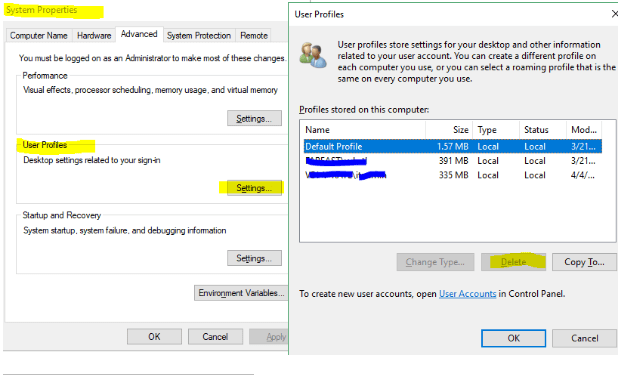
Click Start menu and search for “Computer Management”. Open it from the found
Under Local Users and Groups > Users, delete that user account too.
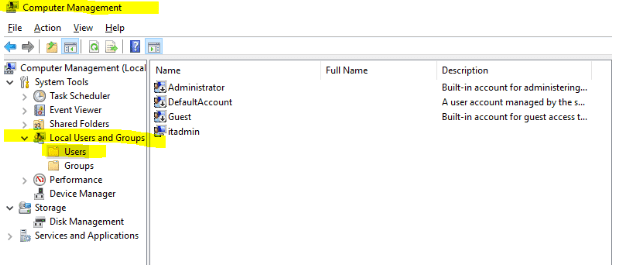
Then you can also delete the old profile folder: C:UsersProfileName
Finally you can create a new account.
Go to Settings > Accounts > Family & Other People.
Click Add someone else to this PC.
On the “How will this person sign in?” page, click I don’t have this person’s sign-in information.
On the “Let’s create your user account” page, click Add a user without a Microsoft account.
Enter a local username that matches exactly what you want to see as the profile name. (If you include a space in the username, the profile folder name will also include a space.)
Add a password and a password hint and finish creating the account.
You can now sign out and sign back in using the new local account. After you sign in, go to Settings > Accounts > Your Info and choose Sign in with a Microsoft account instead. After you finish, your user profile will still have the full name you created when you set up the local account.
CMD list folders and file sizes, find the largest folders and files
Quite often we need to check which folder is taking the most space, here is one a line cmd command to do this:
List folders from the smallest to the largest
cmd /v /c "set zeropad=000,000,000,000,000,&for /f "delims=" %a in ('dir /ad /b') do @set bytes=!zeropad!000&(for /f "tokens=3" %b in ('dir /s "%a" 2^>NUL ^| find "File(s)"') do @set bytes=%b)& @for /f "tokens=1* delims=," %c in ('echo !bytes!') do @(set bytes=%c&@set bytes=000!bytes!&@set bytes=!bytes:~-3!& @set bytes=!zeropad!!bytes!&if "%d" NEQ "" set bytes=!bytes!,%d) & @echo !bytes:~-23! %a" | sort
List folders from the largest to the smallest
cmd /v /c "set zeropad=000,000,000,000,000,&for /f "delims=" %a in ('dir /ad /b') do @set bytes=!zeropad!000&(for /f "tokens=3" %b in ('dir /s "%a" 2^>NUL ^| find "File(s)"') do @set bytes=%b)& @for /f "tokens=1* delims=," %c in ('echo !bytes!') do @(set bytes=%c&@set bytes=000!bytes!&@set bytes=!bytes:~-3!& @set bytes=!zeropad!!bytes!&if "%d" NEQ "" set bytes=!bytes!,%d) & @echo !bytes:~-23! %a" | sort /R
And if you need both files and folders from the smallest to the largest
cmd /v /c "set zeropad=000,000,000,000,000,&for /f "tokens=4* delims= " %a in ('dir ^| find "/" ^| findstr /E /V /R "DIR^>[ ][ ]*..$ DIR^>[ ][ ]*.$"') do @set bytes=!zeropad!000&(if "%a" EQU "^<DIR^>" (for /f "tokens=3" %c in ('dir /s "%b" 2^>NUL ^| find "File(s)"') do @set bytes=%c)) & (if "%a" NEQ "^<DIR^>" (set bytes=%a)) & (for /f "tokens=1* delims=," %d in ('echo !bytes!') do @set bytes=%d&@set bytes=000!bytes!&@set bytes=!bytes:~-3!& @set bytes=!zeropad!!bytes!&if "%e" NEQ "" set bytes=!bytes!,%e)& echo !bytes:~-23! %b" | sort
And files and folders from the largest to the smallest
cmd /v /c "set zeropad=000,000,000,000,000,&for /f "tokens=4* delims= " %a in ('dir ^| find "/" ^| findstr /E /V /R "DIR^>[ ][ ]*..$ DIR^>[ ][ ]*.$"') do @set bytes=!zeropad!000&(if "%a" EQU "^<DIR^>" (for /f "tokens=3" %c in ('dir /s "%b" 2^>NUL ^| find "File(s)"') do @set bytes=%c)) & (if "%a" NEQ "^<DIR^>" (set bytes=%a)) & (for /f "tokens=1* delims=," %d in ('echo !bytes!') do @set bytes=%d&@set bytes=000!bytes!&@set bytes=!bytes:~-3!& @set bytes=!zeropad!!bytes!&if "%e" NEQ "" set bytes=!bytes!,%e)& echo !bytes:~-23! %b" | sort /R
http://didenko.ca/blog/wp-content/plugins/syntax-highlighter-compress/scripts/shBrushBash.js
Loading data and metadata from SAP BW into TM1 using Cognos Package Connector FAQ
It’s been several years I’m dealing with SAP BW in TM1. Though I went through a ton of errors and PMRs opened with IBM, I’m still facing new issues in my everyday work and I know the end will never come. I created this post to summarize the most critical moments and “how-to”. In all my examples I have TM1 / Planning Analytics configured in IntegratedSecurity mode 5. Cognos Analytics is configured to use an LDAP namespace as the authentication provider.
Language setting
The language setting is determined from user’s language setting in Cognos BI (Cognos Analytics). If it is set to Default, the system will use the one from LDAP user’s profile
TO BE CONTINUED…
 Cognos/TM1